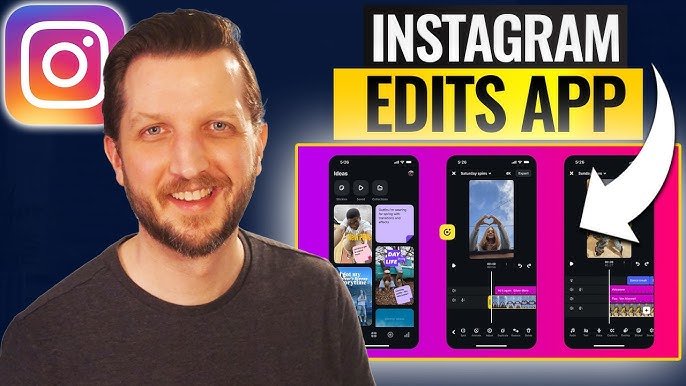

If you have been looking for a dedicated video editing and content planning tool built specifically for Instagram creators, the Edits app by Meta is worth your full attention. Launched as a standalone creative suite, Edits fills a gap that Instagram’s in-app editor could never quite close. Whether you are a solo content creator, a small business owner, or a social media manager handling multiple accounts, this app is designed to streamline the entire content workflow — from initial idea to final publish.
This article covers everything you need to know about the Instagram Edits app: what it is, how its features work, how to use it effectively, and what to watch out for. By the end, you will have a clear picture of whether this tool belongs in your creative process.
What Is the Instagram Edits App?
The Instagram Edits app is a mobile video editing and content creation tool developed by Meta, the parent company of Instagram. It is a free, standalone app available for iOS and Android, designed to help creators produce high-quality short-form video content — particularly Reels — directly from their phones.
Unlike the standard Instagram editor, Edits provides a more advanced, focused environment for building polished videos. Think of it as Instagram’s answer to tools like CapCut or InShot, but with native integration into the Instagram ecosystem, which means your drafts, insights, and publishing workflow all connect seamlessly.
The app was created after Meta noticed a significant number of creators using third-party editing tools before uploading to Instagram. Rather than lose creators to outside platforms, Meta built Edits to keep the entire workflow in one place.
Key Features of the Instagram Edits App
The Edits app is packed with tools that cover nearly every stage of the content creation process. Here is a breakdown of its most notable features.
Advanced Video Editing Timeline
At the core of the app is a multi-layer video editor with a timeline-based interface. You can trim clips, adjust their order, add transitions, and layer audio tracks — all from a visual timeline similar to what you would find in desktop editing software. This is a meaningful upgrade over Instagram’s basic in-app editor, which offers limited timeline control.
Green Screen and Background Effects
The app includes a built-in green screen tool that lets you remove or replace your video background without any physical green screen setup. Using AI-powered background removal, you can place yourself in front of any image or video clip. This feature is particularly popular for reaction videos, tutorials, and product showcases.
Audio Tools and Voiceover Recording
Edits gives you full control over your audio. You can add music from licensed tracks, import audio from your device, record a voiceover directly within the app, and adjust the volume of each audio layer independently. The ability to layer multiple audio sources — background music plus a voiceover, for example — gives your videos a professional quality without needing separate recording software.
Text, Captions, and Subtitles
Adding text to your videos is straightforward in Edits. You can choose from a variety of font styles, adjust sizing and colors, and time text to appear and disappear at specific moments in your clip. One particularly useful addition is the auto-caption feature, which generates accurate subtitles from your spoken audio. Studies consistently show that a large percentage of social media videos are watched on mute, so captions are no longer optional for creators who want strong engagement.
Idea Drafts and Notes
The Edits app includes a dedicated ideas section where you can jot down content concepts, save inspiration, and build a backlog of future video topics. These notes stay inside the app, so your ideas and your editing workspace live in the same place. For creators who often lose ideas between the spark of inspiration and the act of creation, this is a genuinely useful organizational tool.
Native Integration with Instagram Drafts
When you finish editing a video in the Edits app, you can save it directly as an Instagram draft. This means you can pick up where you left off from the Instagram app itself, which is especially helpful when your production process spans multiple sessions or devices.
Performance Insights
One of the more powerful features the Edits app offers is a built-in insights dashboard. You can review performance metrics for your published Reels, including reach, plays, likes, comments, shares, and saves — all from within the Edits environment. This integration between creation and analytics helps you understand which types of content perform well and informs your next project.
How the Instagram Edits App Works
Getting started with the Edits app is straightforward. Here is a general overview of the workflow.
Step One: Download and Sign In
Install the Edits app from the App Store or Google Play. Sign in using your Instagram account credentials. The app will sync with your existing Instagram profile, giving it access to your drafts, published content history, and insights.
Step Two: Start a New Project
Tap the create button to begin a new project. You can import video clips from your camera roll, record new footage directly in the app using the built-in camera, or combine both. The app supports vertical (9:16) aspect ratios optimized for Reels and Stories.
Step Three: Edit Your Video
Use the timeline editor to arrange your clips. Add transitions between segments, overlay audio tracks, record a voiceover if needed, and apply any visual effects such as green screen or color filters. Add text or auto-generated captions at this stage as well.
Step Four: Save to Drafts or Publish
Once your video is ready, you have two main options. You can save it as an Instagram draft and publish later through the Instagram app, or you can publish directly from Edits. The direct publish option allows you to write your caption, add hashtags, tag a location, and set your audience all from within the Edits interface.
Step Five: Review Your Insights
After your Reel goes live, check the insights section within Edits to track how it performs. Use this data to adjust your content strategy going forward.
Advantages and Limitations of the Instagram Edits App
No tool is perfect. Here is an honest look at both sides.
Advantages
The biggest advantage of the Edits app is convenience. Having editing, drafts, idea capture, and insights in one place reduces the friction of creating and publishing content. Creators who previously jumped between multiple apps — one for editing, one for captions, another for analytics — can consolidate their workflow significantly.
The green screen and auto-caption features are genuinely competitive with third-party tools that charge monthly fees. Getting these capabilities for free, with native Instagram integration, is a real benefit for independent creators on limited budgets.
The performance insights built into the app are also valuable because they tie your creative decisions directly to results. Seeing which video styles earned more shares or saves while you are actively planning your next project keeps strategy and execution in sync.
Limitations
The Edits app, as with many Meta products, is primarily optimized for Instagram content. If you create for multiple platforms — YouTube Shorts, TikTok, Pinterest — you will still need additional tools or workflows to repurpose your content effectively.
Some advanced editing features found in dedicated apps, such as color grading tools, speed ramping, or complex motion graphics, are limited or unavailable in Edits. Professional video editors will likely find the toolset sufficient for Instagram but not a complete replacement for desktop software.
The app also requires an active Instagram account to function. If your account is restricted or suspended for any reason, access to your projects and insights through Edits may be affected.
Best Practices and Tips for Using the Instagram Edits App
Getting the most out of the Edits app comes down to how you integrate it into your creative routine, not just how you use individual features.
Use the Ideas Section Consistently
Make a habit of opening Edits whenever a content idea strikes you — whether you are watching a trend, overhearing a conversation, or noticing something in your daily life. Storing ideas in the app means they are already inside your editing environment when you sit down to create. Creators with a content backlog almost always post more consistently than those who start from scratch each time.
Review Insights Before Planning Your Next Video
Before starting a new project, spend a few minutes in the insights section reviewing your most recent Reels. Look for patterns: which topics drove the most shares, which video lengths held attention best, and which posting times correlated with stronger initial reach. Let the data shape your content decisions rather than guessing.
Enable Auto-Captions on Every Video
Turn on auto-captions as a default step in your editing process. Even if you plan to edit or correct the subtitles afterward, starting with auto-generated captions saves significant time. Accurate captions improve accessibility, increase watch time for muted viewers, and can even boost reach by making your content indexable by Instagram’s content recognition systems.
Keep Drafts Organized
Use the draft system to build a small inventory of ready-to-publish videos. Aiming to have two or three finished Reels in your draft queue at any given time gives you a buffer for days when you cannot create fresh content. Consistent posting — even during busy periods — is one of the most reliable ways to maintain and grow an Instagram audience.
Match Your Audio to Your Audience’s Taste
Pay attention to the music and audio tracks your audience responds to in your insights. If a particular Reel with a trending sound significantly outperformed your others, take note of the genre, tempo, and style. The audio component of short-form video is often underestimated but plays a major role in whether viewers stop scrolling.
Common Mistakes to Avoid
Even with a well-designed tool, creators often fall into habits that limit their results. Here are the most common mistakes to steer clear of when using the Instagram Edits app.
Ignoring the Insights Dashboard
Many creators use the editing features in Edits but rarely open the insights section. This is a missed opportunity. The data your published Reels generate is some of the most actionable feedback you can receive about what works for your specific audience. Make insights review a regular part of your routine, not an afterthought.
Over-Editing Videos
The Edits app makes it easy to layer effects, transitions, text, and audio — but more effects do not automatically mean better content. Over-edited videos can feel cluttered and distract from the core message. Instagram audiences generally respond well to content that feels authentic and clear. Use effects purposefully and remove anything that does not serve the story you are telling.
Publishing Without a Caption Strategy
Some creators spend significant time on their video but rush through the caption when publishing. A strong caption can extend the reach of your Reel by prompting comments, encouraging saves, and framing the video’s context for new viewers. Take your caption as seriously as you take your edit.
Skipping the Ideas Section
Not building a habit around the ideas feature means you will frequently find yourself staring at the creation screen without knowing what to make. Treat the ideas section like a content journal. The more you add to it, the easier it becomes to start a new project with purpose and direction.
Not Testing Different Video Lengths
The Edits app supports video clips across a range of lengths. A common mistake is defaulting to one length — often either very short or consistently long — without testing alternatives. Instagram’s Reels algorithm responds differently to various lengths depending on content type and audience behavior. Use your insights to experiment and find the sweet spot for your niche.
Frequently Asked Questions
Is the Instagram Edits app free to use?
Yes, the Edits app is completely free to download and use. It is available on both iOS and Android. There is no premium tier or paid subscription required to access its features, including video editing tools, auto-captions, green screen, and insights.
Do I need a professional Instagram account to use Edits?
No, you do not need a professional or creator account to use the basic features of the Edits app. However, to access the full insights dashboard and performance analytics for your Reels, you will need to have a professional or creator account set up on Instagram, as those metrics are tied to that account type.
Can I use the Edits app to post to other platforms besides Instagram?
The Edits app is designed specifically for Instagram content. While you can export finished videos to your camera roll and then upload them manually to other platforms, the app’s native publishing, draft, and insights features only connect to Instagram. There is no direct integration with TikTok, YouTube Shorts, or other platforms.
Does the Edits app work offline?
You can perform most editing tasks within the Edits app without an internet connection, including trimming clips, adding text, and arranging your timeline. However, features that require connectivity — such as accessing licensed music, publishing your video, or viewing insights — require an active internet connection.
How is the Edits app different from editing inside the Instagram app?
The main Instagram app includes a basic editor for Reels that works well for quick, simple content. The Edits app offers a significantly more advanced environment, including a multi-layer timeline, green screen, independent audio track controls, a dedicated ideas section, and a more detailed insights dashboard. For creators who take their content seriously, Edits provides considerably more control and flexibility.
Is there a desktop version of the Instagram Edits app?
As of now, the Instagram Edits app is a mobile-only tool available for iOS and Android devices. There is no official desktop version. For creators who prefer editing on a computer, desktop tools like Adobe Premiere Rush or DaVinci Resolve remain the alternatives, though they do not offer native Instagram integration.
Conclusion
The Instagram Edits app represents a meaningful step forward for creators who want to produce quality short-form video content without juggling multiple tools. Its combination of a capable video editor, auto-caption generation, green screen technology, a built-in idea capture system, and native Instagram insights makes it one of the more well-rounded free tools available specifically for Instagram creators.
It is not without limitations. Advanced video production professionals will find the feature set narrower than dedicated desktop software, and the app is designed exclusively around the Instagram ecosystem. But for the majority of creators — whether you are just starting out or actively growing an established audience — Edits delivers real value at no cost.
If you have been putting off building a more consistent video content practice because of the friction involved in editing and planning, the Edits app removes several of those barriers in one place.
Explore the app, spend time with the insights section, and use the ideas feature to build a content backlog. The more intentionally you use these tools together, the more consistent and effective your Instagram content strategy will become.