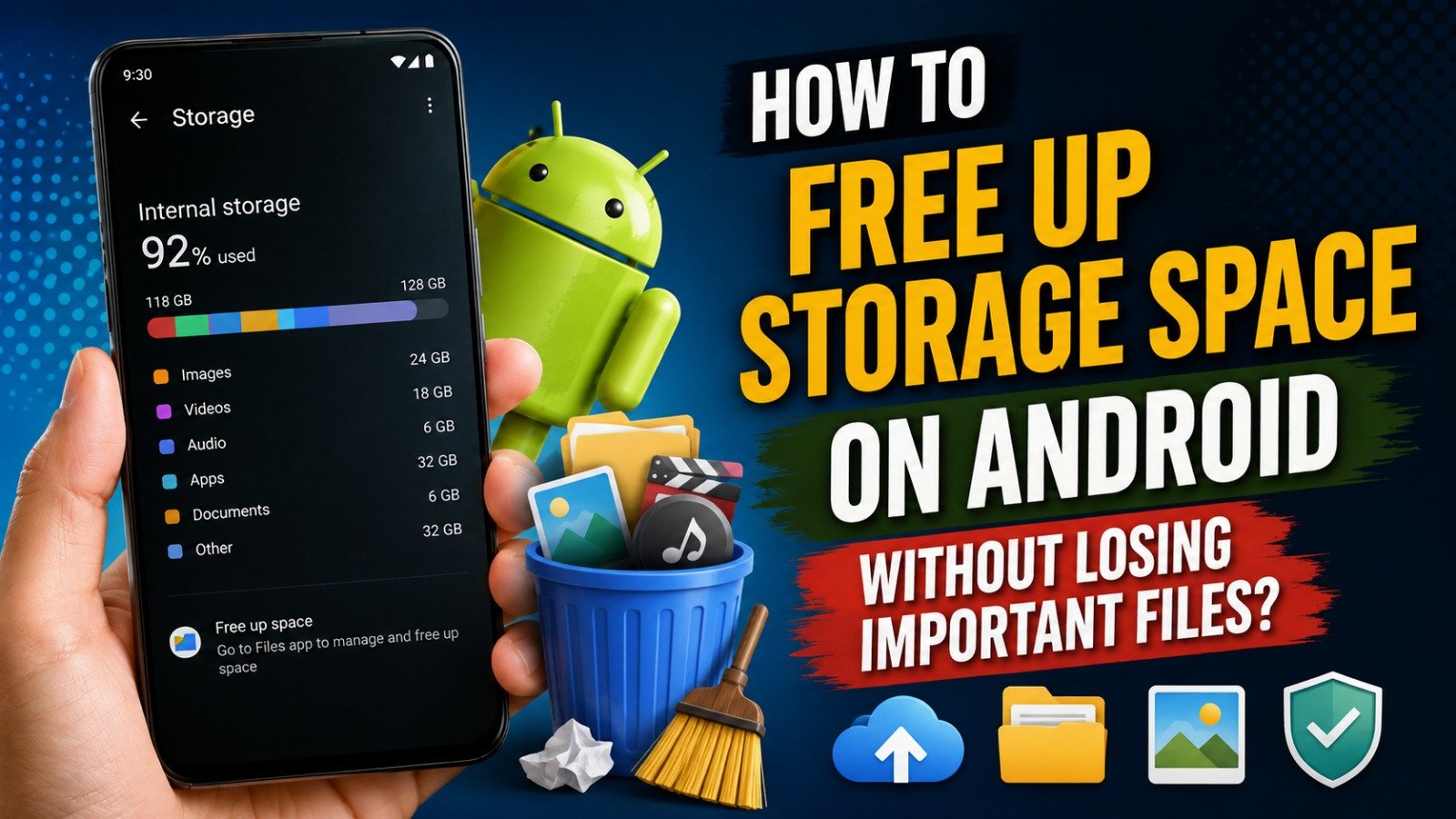

If your phone keeps warning you that storage is full, your first instinct might be to start deleting things — but that’s the fastest way to accidentally lose a photo, document, or app you actually needed. The good news is that most Android phones are carrying around gigabytes of “invisible” clutter that has nothing to do with your personal files: cached data, duplicate downloads, old app leftovers, and offline maps you forgot you saved.
This guide walks through how to find and clear that clutter first, using tools that are already built into Android, before you ever have to consider deleting something irreplaceable. Menu names vary slightly between Samsung, Pixel, Xiaomi, OnePlus, and other brands, but the general path is the same on nearly every modern Android device.
Check What’s Actually Using Your Storage First
Before deleting anything, it helps to see where your space is going. On most phones running Android 14 or later, go to Settings → Storage, where you’ll see a breakdown by category — Apps, Photos & videos, System, and so on. Tapping a category shows you what’s inside it.
This step matters because the biggest space users are often not what people expect. It’s frequently cache data, duplicate media shared through messaging apps, or a handful of large video files sitting in Downloads — not the apps or photos you’d assume are the culprits.
Clear App Cache Instead of Deleting Apps
Cache files are temporary data apps create to load faster next time you open them — thumbnails, pre-loaded content, and similar files. Clearing cache does not delete your account data, saved logins, or app settings; the app simply rebuilds the cache the next time you use it.
To clear cache for an individual app: go to Settings → Apps, tap the app in question, then Storage → Clear cache. Checking your most-used apps (social media, messaging, and streaming apps tend to accumulate the most cache) is usually enough to notice a difference, since a handful of heavily used apps can account for several gigabytes.
A common mistake: tapping “Clear data” instead of “Clear cache.” Clear data wipes the app back to a freshly installed state, including saved logins and in-app settings. Clear cache does not.
Use Files by Google to Find Junk Automatically
Rather than hunting through folders manually, Files by Google (pre-installed on many Android phones, and free to download from the Play Store on others) scans your device and groups removable items into categories you can review before deleting anything.
To use it: open the app, tap the menu icon in the top-left corner, and select Clean. You’ll see suggestion cards for things like <cite index=”12-1″>junk files, duplicate files, old screenshots, large files, and unused apps</cite>. Each card shows how much space that category would free up and lets you preview the files before confirming deletion, so nothing is removed automatically without your review.
A few categories worth understanding:
- Junk files are temporary files apps create and no longer need — safe to clear.
- Duplicate files often build up from apps like WhatsApp or Telegram that save multiple copies of forwarded photos and videos.
- Large files and old screenshots are worth a manual glance rather than a blanket delete, since this category can include files you actually meant to keep.
- Unused apps flags apps you haven’t opened in a while, but check this list carefully — an app you use rarely (like a travel app you only open once a year) isn’t necessarily one you want gone.
Archive Apps Instead of Uninstalling Them
If you have apps you don’t use often but don’t want to fully remove, Android’s Automatically archive apps feature is worth knowing about. When enabled, infrequently used apps are archived to save space, but <cite index=”13-1″>your personal data on the app is saved, and the app’s icon remains on your device</cite> so you can reinstall it later without losing your progress or settings, as long as it’s still available on Google Play.
To turn this on: open the Play Store app → Profile → Settings → General, and toggle Automatically archive apps. You can also archive individual apps manually the same way, rather than waiting for the automatic system to decide.
This is genuinely different from uninstalling — it’s closer to putting an app in storage than deleting it, which makes it a safer option when you’re unsure whether you’ll want an app again.
Turn On Smart Storage for Photos and Videos
If your camera roll is the main space hog, Smart Storage can help without requiring you to manually sort through thousands of photos. When turned on, it automatically <cite index=”13-1″>clears backed-up photos and videos from your device once your storage is almost full</cite> — meaning it only removes local copies of media that’s already safely stored in the cloud (typically Google Photos), not your only copy.
To enable it: Settings → Storage → Free up space → Menu → Settings, then turn on Smart Storage.
An important limitation: Smart Storage only removes photos and videos that have already finished backing up. If your Wi-Fi has been off, or your Google Photos backup is behind, nothing gets cleared until the backup catches up — so it’s not an instant fix if you’re in a rush and haven’t had a working internet connection recently.
Separately, Files by Google also has an offloading feature that removes on-device copies of photos that have been sitting on your phone for two months and are already backed up, which works alongside Smart Storage rather than replacing it.
Check Offline Maps and App-Specific Storage
Apps like Google Maps and music or podcast apps often store large files locally that people forget about entirely. Offline map regions, in particular, can each take up several hundred megabytes.
To check Maps: open Google Maps → Profile → Offline maps, and delete any regions you no longer need. For music or podcast apps, look in each app’s own Settings or Storage section — most streaming apps let you clear cached downloads separately from your account data, similar to how app cache works system-wide.
Move Files to Cloud Storage Instead of Deleting Them
If a file matters but you don’t need it on your device right now, moving it to Google Drive, Google Photos, or an SD card (on devices that support one) frees up local space without losing the file. This is a genuinely different approach from deletion — it relocates the data rather than removing it, which matters if the file has any sentimental or practical value you’re not ready to give up.
Keep in mind that moving photos or documents to Google Drive or Google Photos counts against your Google Account storage, not your device storage. If your Google Account storage is also nearly full, check Settings (Google app) → Google One → Manage storage to see what’s using space there and clean it up separately.
Situations Where These Methods Won’t Help Much
It’s worth being upfront about the limits of cache-clearing and cleanup tools:
- If storage is filled almost entirely by installed apps and their data (games with large install sizes, for example), clearing cache and junk files will only recover a small amount of space. In that case, the realistic options are uninstalling less-used apps or moving to a device with more storage.
- If cloud backup isn’t finished, Smart Storage and similar auto-offload features won’t remove anything yet, since they only act on files already safely backed up.
- On some manufacturer skins, certain menu names or features described here may be labeled differently or located in a slightly different settings path. The core functionality is generally similar across brands, but it’s worth checking your device’s own Storage settings menu if a specific path doesn’t match what you see.
Frequently Asked Questions
Does clearing app cache delete my saved logins or app data? No. Clearing cache only removes temporary files an app uses to load faster. Logins, settings, and saved data remain intact. Only “Clear data” resets an app to its original installed state.
Is Files by Google safe to use? Files by Google is developed and distributed by Google itself, and it’s free with no ads. As with any app that scans your files, it’s worth reviewing the suggested files before confirming deletion, since categories like “Large files” can occasionally include something you meant to keep.
Will archiving an app delete my progress in it? No — archiving is designed to preserve your personal data within the app while reclaiming the storage space the app’s files were using. Reinstalling from the Play Store restores it, provided the app is still available there.
Why does Smart Storage sometimes not free up any space? Smart Storage only removes photos and videos that have already finished backing up to the cloud. If your backup is incomplete — often due to a weak or absent Wi-Fi connection — there’s nothing eligible to clear yet.
Do I need a third-party cleaner app to free up space? Not necessarily. Android’s built-in Storage settings and Files by Google cover most common cleanup needs — cache, junk files, duplicates, and unused apps — without requiring an additional app. Availability of specific features may vary by device and Android version.
How much storage can I realistically expect to recover? This varies significantly depending on how long it’s been since you last cleaned up and how you use your phone. Clearing cache from frequently used apps and reviewing duplicate or junk files can free up a noticeable amount on a phone that hasn’t been cleaned in a while, but exact figures depend on your device, apps installed, and usage habits.