A factory reset erases everything on your phone and returns it to the state it was in when it left the factory — installed apps, photos, messages, saved passwords, and settings all disappear at once. That makes it an effective fix for a phone with persistent software problems, but only if you’ve backed up what matters first. Skip that step, and there’s no undo.
This guide walks through exactly what Android backs up automatically, what it doesn’t, and how to make sure nothing important gets left behind before you reset — whether you’re troubleshooting a problem device or preparing to hand it off or sell it.
What a Factory Reset Actually Deletes
It helps to know exactly what’s at stake. A factory reset removes <cite index=”72-1″>all installed apps and saved data</cite> from the phone’s internal storage. This includes photos and videos that haven’t been backed up elsewhere, downloaded documents, offline music and podcast files, app data for apps that don’t sync to the cloud, and any local notes or saved logins that live only on the device.
It generally does not erase a removable SD card, though it’s worth removing one before resetting if you want to be completely certain it isn’t touched during the process — some manufacturer reset menus include an option to also format external storage, and it’s easy to select accidentally if you’re moving quickly through the confirmation screens.
Check Whether Your Phone Is Already Backing Up Automatically
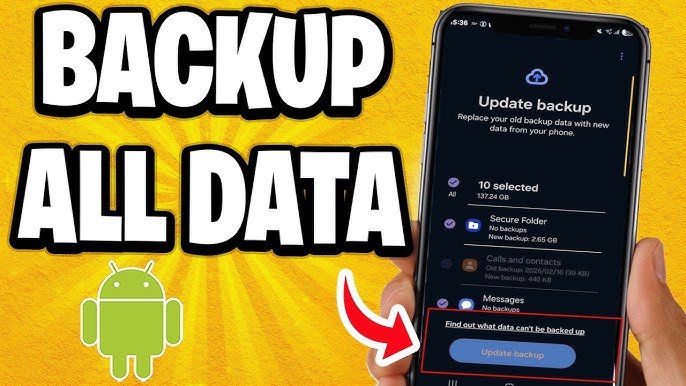
Before doing anything else, check whether Android has already been backing up your data in the background. Go to Settings → Google → Backup (on some phones this is under Settings → System → Backup, and on Samsung devices it’s Settings → Accounts and backup → Back up data, under the Google section).
If backup has been turned on, you’ll see the date and time of the last backup. If it’s recent, much of the manual work below may already be done. If it’s been weeks, or backup was never turned on, tap Back up now to bring it current before proceeding.
<cite index=”66-1″>Google’s backup covers installed apps and app data for apps that support it, call history, contacts stored in your Google account, device settings like display, sound, Wi-Fi passwords, and Bluetooth pairings, along with SMS and MMS messages and wallpaper</cite>. That’s a meaningful amount of coverage, but it’s not everything — which is the part most people get wrong.
What Google’s Backup Does Not Cover
This is the section worth reading carefully, because assuming Google backup is comprehensive is the most common mistake people make before a reset. <cite index=”66-1″>Google backup does not include files stored locally on the phone — documents, downloads, and music files — nor does it include WhatsApp chat history (which uses its own separate backup system), data from apps that don’t support Google’s backup system, passwords saved in non-Google password managers, or local game saves that haven’t been synced to the cloud</cite>.
In practice, that means you need to separately check:
- Photos and videos — handled by Google Photos, not the general Google backup
- WhatsApp and similar messaging apps — most have their own in-app backup option
- Files in Downloads, Documents, or a file manager app — nothing backs these up automatically unless you move them yourself
- Offline music, podcasts, or downloaded shows — these live locally and won’t survive a reset unless the source app resyncs them from an account
- Game progress — only covered if the specific game syncs to a cloud account (Google Play Games, or the game’s own account system)
- Passwords stored in third-party password manager apps — these typically have their own export or cloud sync feature, separate from anything Android handles
Back Up Photos and Videos with Google Photos
Since photos and videos are excluded from the general Google backup, they need their own step. Open Google Photos, sign in with your Google Account, tap your profile icon in the top right, go to Photos settings → Backup & sync, and turn it on.
<cite index=”70-1″>Within the Backup & sync settings, you’ll find an Upload Size option with two choices: High Quality or Original Quality. Choosing High Quality effectively grants unlimited storage under Google’s terms, while Original Quality counts fully against your regular Google storage quota.</cite> If you’re short on Google storage space, High Quality is the more practical option for a large photo library, though it’s worth knowing that it may apply some compression to very large files rather than storing them completely unchanged.
Give the backup enough time to finish before resetting — for a large photo and video library, this can take hours, and it depends entirely on your Wi-Fi speed and how much needs to upload. Check that the backup shows as complete (not just “in progress”) before moving forward.
Back Up Files, Documents, and Downloads
For anything sitting in your Downloads folder, documents you’ve saved locally, or files transferred from another device, Google Drive is the most straightforward option since it’s typically pre-installed. Open the Google Drive app, tap the + button, select Upload, choose the files you want to save, and confirm the upload.
This step is manual and file-by-file (or folder-by-folder), which makes it easy to skip by accident. It’s worth taking a few minutes to actually open your Downloads and Documents folders and check what’s there before assuming nothing important is stored locally — it’s a common surprise for people who thought everything synced automatically.
Back Up WhatsApp and Other Messaging Apps Separately
Messaging apps that store chat history outside of Android’s standard backup system need their own backup step, and WhatsApp is the most common example. Inside WhatsApp, go to Settings → Chats → Chat backup, and back up manually or confirm that automatic backup to Google Drive is turned on with a recent date shown.
Other messaging apps — Telegram, Signal, and similar services — generally store your messages on their own servers tied to your account rather than locally on the device, so a factory reset typically doesn’t affect them the same way, but it’s worth checking each app’s own settings if you’re unsure, since behavior varies by app.
Check Your Google Account Storage Before You Start
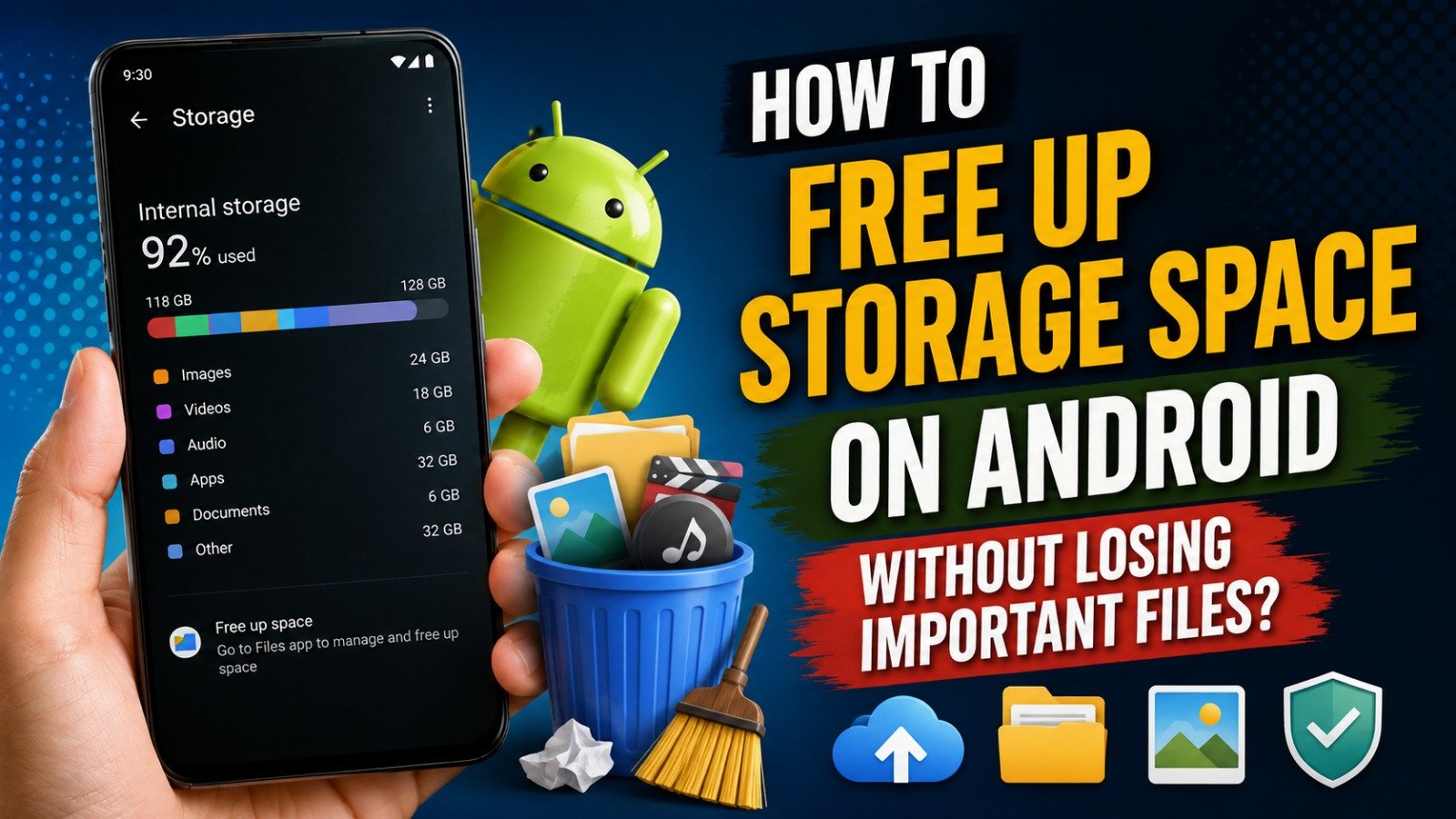
All of this — Google backup, Google Photos (if set to Original Quality), and Google Drive uploads — counts against the same pool of storage tied to your Google Account. <cite index=”67-1″>Google provides 15GB of free storage shared across Gmail, Drive, and Photos.</cite> If your backup is larger than what’s left in that free allowance, uploads can silently stall or fail partway through, which is easy to miss if you’re not checking.
Check your usage at Settings → Google → Manage your Google Account → Storage, or through the Google One app. If you’re close to the limit, either delete unnecessary content from Gmail or Drive first, or consider a temporary Google One storage upgrade for the duration of the backup and restore process.
Set a Screen Lock Before Backing Up
This is a step people frequently miss because it seems unrelated to backup. <cite index=”67-1″>Google encrypts sensitive backup data end-to-end using your device’s PIN, pattern, or password</cite>, so if your phone doesn’t have a screen lock set, some of your backed-up data may not be encrypted the same way, or in some cases certain backup categories may not function as expected.
Go to Settings → Security → Screen lock and set a PIN, pattern, or password if you haven’t already, before you start the backup process — and remember that same PIN/pattern/password, since you’ll likely need to enter it when restoring the backup on a reset or new device.
Alternative: Back Up Everything to a Computer
If you’d rather have a complete local copy rather than relying entirely on cloud storage — useful if you have limited Google storage, a slow connection, or simply prefer having a backup you control directly — connecting your phone to a computer via USB cable lets you manually copy over photos, videos, documents, and music files.
This method only transfers files that live in accessible storage folders; it won’t capture app data, contacts stored only on the device, or system settings the way Google’s backup does. It’s best treated as a supplement to cloud backup for your media files, not a full replacement for it, since <cite index=”69-1″>there’s no way to create a complete image of everything on the device without root access, which carries its own real risks</cite>.
Samsung Users: Consider Samsung Cloud or Smart Switch in Addition
If you have a Samsung device, Google’s backup won’t capture everything Samsung-specific. <cite index=”67-1″>Samsung Cloud backs up items that Google’s system doesn’t include, such as your home screen layout, alarms, call logs, and Samsung Notes.</cite> To use it: Settings → Accounts and backup → Samsung Cloud → Back up data, select what to include, and tap Back up now.
For an even more complete local backup, Samsung’s Smart Switch app can transfer data directly to a computer over USB, which is worth doing if you want a full offline copy in addition to your Google and Samsung Cloud backups rather than relying on cloud storage alone.
Common Mistakes to Avoid
A few mistakes come up repeatedly with this process, and they’re worth calling out directly:
- Assuming “Google backup is on” means everything is covered. As covered above, several major categories — local files, WhatsApp, third-party password managers — are excluded and need their own separate step.
- Resetting before a large photo backup finishes. If Google Photos backup is still “in progress” when you reset, anything not yet uploaded is gone. Confirm it shows complete first.
- Forgetting the screen lock PIN used during backup. You’ll often need it again to decrypt certain backup data during restore, so write it down somewhere safe if there’s any chance you’ll forget it.
- Not checking Google storage space in advance. A backup that silently fails partway through due to a full storage quota can be mistaken for a completed backup if you don’t actually verify it.
- Leaving an SD card in during reset without checking the reset options carefully. Some manufacturer reset screens include a checkbox to also erase external storage, and it’s easy to tap through without noticing.
Frequently Asked Questions
Will a factory reset delete my Google Photos if backup is complete? No. Once photos and videos have finished uploading to Google Photos, they remain in your Google Account and are unaffected by a factory reset of the device. Only photos still stored solely on the device (not yet backed up) would be lost.
How long does Google’s backup take to complete? It varies significantly depending on how much data there is and your connection speed. A first-time backup with a large photo library can take several hours, so it’s worth doing this the night before a planned reset while connected to Wi-Fi and a charger, rather than right beforehand.
Do I need to back up my apps individually? No, in most cases. Apps themselves are re-downloaded from the Play Store automatically during setup after a reset, as long as you sign back into the same Google Account. App-specific data (like game progress or in-app settings) is only preserved if the app itself supports Google’s backup system or has its own cloud sync.
What happens if I forget to back up something and already reset my phone? Once a factory reset is complete, anything that wasn’t backed up beforehand is generally unrecoverable through normal means. This is exactly why confirming each backup category (photos, files, WhatsApp, and so on) before resetting matters more than doing it quickly.
Is it safe to use third-party backup apps instead of Google’s built-in system? Third-party backup apps exist and can be useful for specific needs, but any app requesting broad access to your contacts, messages, and files deserves scrutiny — check what data it collects and how it’s stored before trusting it with a full backup. Google’s built-in system, being integrated directly into Android, is the most straightforward starting point for most people.
Do I need to remove my SIM card before a factory reset? Not for backup purposes — a SIM card stores very little data (mainly some contacts on older phones) and isn’t affected by a factory reset either way. It’s more of a practical step if you’re selling or giving away the device, so you don’t lose your SIM along with it.