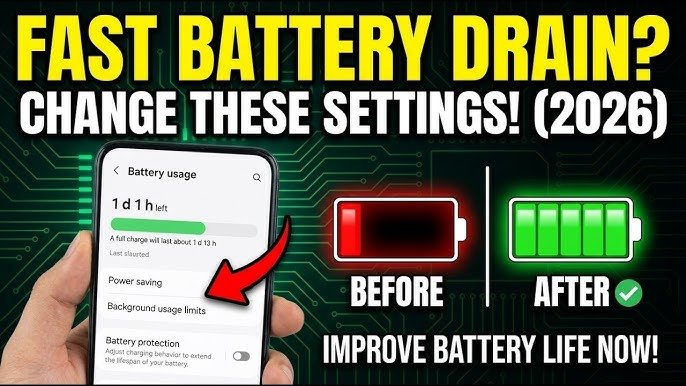
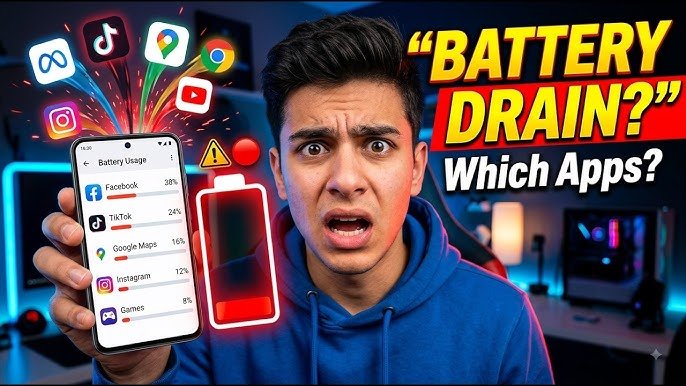
If your Android phone isn’t lasting as long as it used to, the fastest way to find out why is to look at the battery usage screen built into every Android device. It shows you, app by app, how much of your battery each one has used — and once you know that, you can decide whether to limit an app, adjust its permissions, or just leave it alone because the usage is normal.
This guide walks through exactly where to find that screen, how to read what it’s telling you (the numbers are easy to misread), and what to actually do once you’ve spotted the app that’s causing the drain.
Where to Find Battery Usage on Android
The core path is the same on nearly every Android phone, though the exact wording changes depending on the manufacturer:
On Pixel phones and stock Android: Open Settings, tap Battery, then tap Battery usage.
On Samsung Galaxy phones: Open Settings, tap Battery and device care, then tap Battery. From there, select View details to see the full app-by-app breakdown.
On OnePlus, Xiaomi, Oppo, and Vivo phones: The setting is usually under Battery or Battery and device care, but it may be labeled Battery usage details or something similar depending on the software version. If you don’t see it right away, try searching “battery” inside the Settings app’s search bar — nearly every manufacturer includes one, and it’s the quickest way to skip the manual digging.
Once you’re on the battery usage screen, you’ll see a ranked list of apps sorted by how much of the total battery drain each one is responsible for, usually shown as a percentage.
Understanding the Time Range (This Changes What You See)
One detail that trips people up: battery usage screens default to showing data for the last 24 hours or since your last full charge, not your phone’s entire history. If you charged your phone two hours ago, an app you used heavily yesterday won’t show up as a big drain today, even if it’s normally a problem.
Most Android phones let you switch the time range to see a longer trend, sometimes up to seven days. If you’re trying to catch an app that only misbehaves occasionally, checking the 7-day view (when available) gives a more honest picture than a single day’s snapshot.
What the Percentages Actually Mean
This is the part a lot of basic guides skip, and it’s the difference between reading the list correctly and jumping to the wrong conclusion.
The percentage next to each app is that app’s share of total battery drain during the time window you’re viewing — not the percentage of your total battery capacity. If an app shows 18%, that means it accounted for 18% of whatever battery you used in that period, not that it drained 18% of a full charge on its own.
That distinction matters because a phone you barely touched overnight might show one background app at a high percentage, simply because almost nothing else was running. Don’t assume a high percentage always means an app is broken — check what else was active during that window first.
Screen Time vs. Background Activity: The Detail That Actually Matters
Tapping on an individual app in the list usually breaks its usage down further, showing how much battery it used while you were actively looking at the screen versus how much it used running in the background.
This is the single most useful piece of information on the whole screen. An app with high battery use because you were actively using it — navigation apps during a long drive, or a game you played for an hour — is expected and not a problem. An app with high battery use that you rarely open, where most of that usage happened in the background, is the one worth investigating. That pattern (heavy background drain, light actual use) is the clearest sign an app is doing more than it should.
Common Mistakes People Make When Reading This Screen
- Panicking over system processes. Entries like “Android System,” “Android OS,” or “Google Play services” often appear near the top of the list. These aren’t apps you can uninstall, and high usage from them is frequently normal, tied to things like screen time, connectivity, or background system tasks rather than a single misbehaving app.
- Blaming the most-used app automatically. The app you open most often will often show the highest usage simply because you’re using it the most. That’s not the same as an app being inefficient.
- Ignoring the background percentage. As covered above, this is usually more revealing than the total percentage alone.
- Assuming one bad day represents a pattern. A single unusual day (heavy GPS use, a long video call) can temporarily push an app to the top of the list without it being a chronic issue.
What to Do Once You’ve Found a Battery-Draining App
Once you’ve identified an app that’s using more background battery than its actual use would justify, you have a few options, roughly from least to most drastic:
- Restrict its background activity. Go to the app’s info page (long-press the app icon, or find it under Settings > Apps), tap Battery, and choose a more restrictive setting such as Optimized or Restricted, depending on what your phone offers. Restricted settings limit background activity more aggressively but may delay notifications from that app.
- Review its permissions. Apps with constant access to location, camera, or background data tend to use more battery. Trimming permissions to “only while using the app” (where available) can reduce background drain without removing functionality you actually use.
- Turn off unnecessary notifications and sync. Apps that frequently sync data or push notifications wake your phone’s processor more often, which adds up over a day.
- Update the app. Developers regularly release updates that fix inefficient background behavior. An outdated version could be behind a drain that a newer version has already resolved.
- Uninstall it, if it’s not essential. If an app is rarely used and consistently near the top of your battery list, removing it is often simpler than trying to manage its settings.
When This Won’t Fully Solve the Problem
Checking battery usage by app is useful, but it won’t catch everything. A few situations to be aware of:
- Battery health degrades naturally over time. If your phone is more than two or three years old and every app looks normal, the issue may be the battery itself losing capacity rather than any single app.
- Screen brightness and display time aren’t always broken out as an “app.” On some phones, screen usage is listed separately from apps, so a bright display and long screen-on time can be a bigger factor than anything on the app list.
- Some manufacturers apply aggressive background restrictions by default, which can make the battery usage list look unusually clean even when an app would otherwise be a heavy background user. This is generally a feature, not something to worry about.
- Third-party battery monitoring apps can add more detail, such as tracking usage in milliamp-hours or over longer historical periods, but they require their own permissions and background access, which is worth weighing against the extra detail they provide.
Conclusion
The battery usage screen under Settings > Battery (or Battery and Device Care on Samsung) is the most reliable starting point for figuring out what’s draining your Android phone. The key is reading it correctly: pay attention to the time range you’re viewing, don’t take a raw percentage at face value, and use the screen-on versus background breakdown to tell normal use apart from an app quietly working when you’re not looking. From there, restricting background activity, adjusting permissions, or uninstalling the app are usually enough to get your battery life back on track.
FAQ
Why does “Android System” or “Google Play services” show up as a top battery user? These are core system processes, not apps you installed, and they’re often tied to background tasks like location services, connectivity, or app syncing across your phone. High usage here isn’t automatically a problem, though consistently very high usage can be worth investigating through your phone’s system settings.
Does closing an app from recent apps stop it from using battery? Not necessarily. On modern Android versions, Android’s own memory management handles most of this automatically, and manually closing apps can sometimes make battery life worse by forcing apps to fully restart (using more power) instead of resuming from a paused state. Restricting background activity through the app’s battery settings is generally more effective.
Why does an app I barely use show up high on the battery list? This usually points to background activity — the app may be syncing, checking for updates, or holding a connection open even when you’re not using it. Tap the app to see its screen-on versus background split; a low screen-on time paired with high background use is the clearest sign to restrict that app.
Is it normal for the battery usage list to change every day? Yes. The list reflects your actual usage during the selected time window, so it will shift based on which apps you used, for how long, and what was running in the background that day. Checking a longer time range, when your phone offers one, gives a more stable picture than a single day.
Will restricting background activity break notifications for an app? It can, depending on how restrictive the setting is. “Optimized” settings usually preserve normal notification delivery while still improving efficiency, while more aggressive “Restricted” settings can delay or reduce background notifications from that app. It’s worth testing on one app at a time to see what trade-off you’re comfortable with.
Do third-party battery monitor apps give better information than the built-in screen? They can offer more detail, such as historical trends or estimates in milliamp-hours, but they need their own background access and permissions to work, which itself uses some battery. For most people, the built-in battery usage screen provides enough information to identify and fix the actual problem.