
A phone that used to open apps instantly and now hesitates before every tap is one of the most common Android complaints — and also one of the most fixable. In the large majority of cases, a slow Android phone isn’t a hardware problem at all. It’s the buildup of cache files, background processes, forgotten apps, and outdated software that happens naturally the longer you use a device.
This guide walks through 15 practical fixes, starting with the fastest and safest options and moving toward more advanced settings changes. You don’t need to try all 15 — start from the top, test your phone after each one or two steps, and stop once it feels noticeably better. Menu names differ slightly between Samsung, Pixel, Xiaomi, OnePlus, and other brands, so we’ll note where that matters.
1. Restart Your Phone
It sounds too simple to matter, but a restart clears your phone’s RAM, shuts down background processes that have piled up over days of use, and resolves small temporary glitches. If you can’t remember the last time you restarted your phone rather than just letting the screen sleep, this alone can produce a noticeable improvement.
Some manufacturer interfaces, including Samsung’s One UI, let you schedule automatic restarts on a set day and time, which is a low-effort way to keep this habit going without remembering to do it manually.
2. Free Up Storage Space
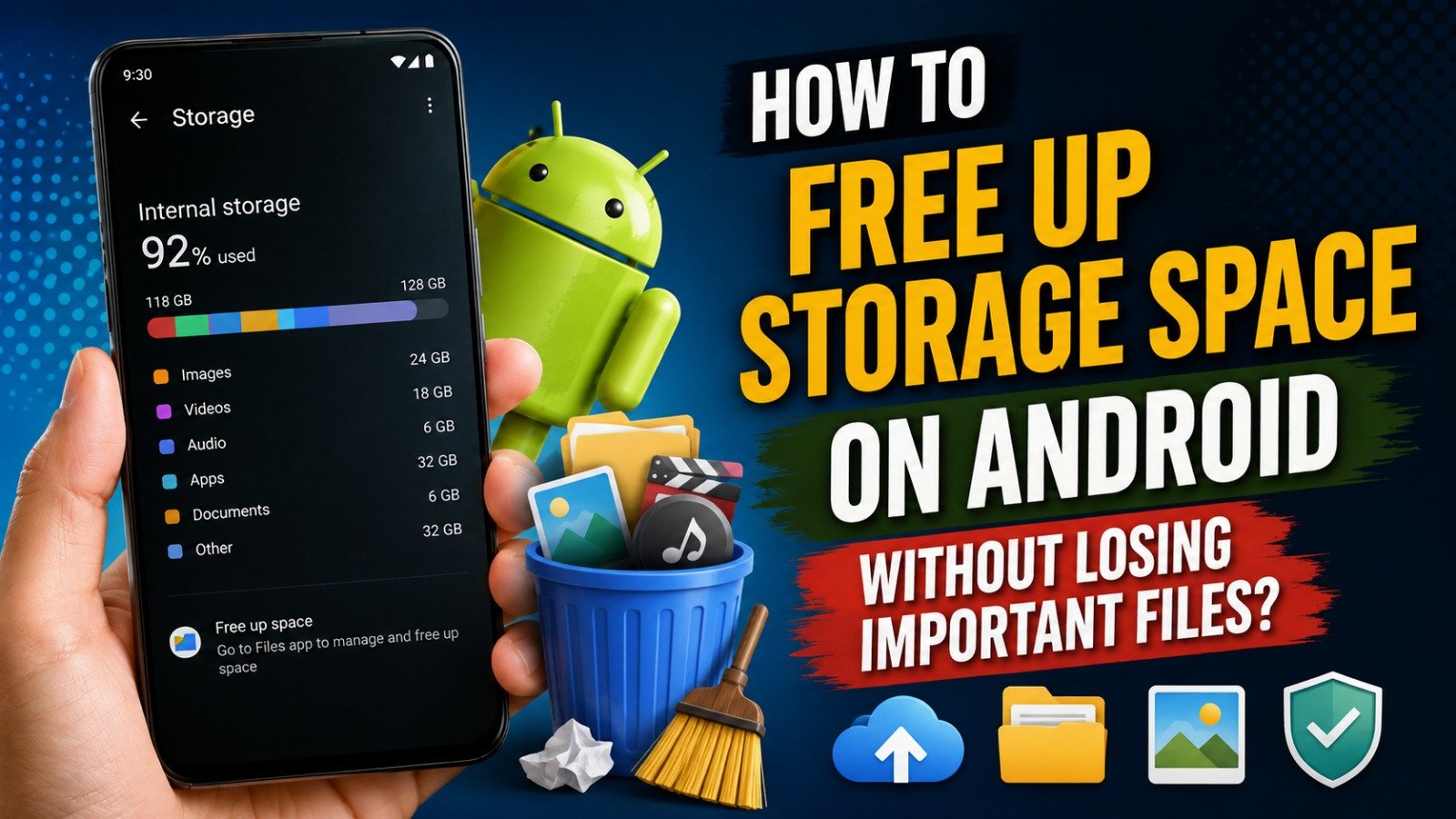
Android needs a reasonable amount of free storage to manage temporary files, app updates, and system operations smoothly. <cite index=”32-1″>Phones can start having performance issues when less than 10% of storage is free</cite>, so this is worth checking early rather than late.
Go to Settings → Storage to see what’s using your space. If storage is the issue, clearing cache, removing duplicate files, and reviewing unused apps and downloads (through Files by Google or your phone’s built-in storage manager) typically recovers the most space with the least risk of losing something you need. A full breakdown of storage cleanup methods that don’t touch your personal files is worth doing as its own project if you haven’t cleaned up in a while.
3. Clear Cache for Your Most-Used Apps
Cache is temporary data apps store locally so they can load faster next time. It’s genuinely useful — until it accumulates to the point where a bloated or corrupted cache actually slows the app down instead of helping it.
To clear cache for a specific app: Settings → Apps → select the app → Storage → Clear cache. This does not delete your login information or in-app settings — only the temporary files. Apps with heavy caching tendencies, like social media apps and web browsers, are usually the ones worth checking first.
A mistake to avoid: don’t confuse “Clear cache” with “Clear data.” Clear data wipes the app back to its freshly installed state, including saved logins — that’s a much bigger reset than most people intend when they’re just trying to speed things up.
4. Update Your Apps
Outdated apps can run less efficiently, and developers regularly ship performance and bug fixes in updates. Open the Play Store → Profile icon → Manage apps and device, review pending updates, and either update everything at once or handle them individually.
5. Check for a System Software Update
Android version updates often include performance-focused changes, not just new features. <cite index=”23-1″>Android 17, which began rolling out in 2026, introduced app memory limits designed to prevent individual apps from consuming excessive RAM</cite> — a change Google has said should help with overall speed and battery life on supported devices.
Check via Settings → System → Software update (the exact wording may vary by manufacturer). Not every phone will be eligible for the newest Android version — availability depends on your device’s age, manufacturer, and carrier, so if an update isn’t available yet, it may simply not have reached your specific model.
6. Uninstall Apps You No Longer Use
Every installed app has some footprint, and some continue running background processes even when you’re not actively using them. Go to Settings → Apps, sort by size or last-used date if your phone allows it, and look for anything you genuinely forgot you’d installed — a game you finished months ago, a shopping app for a store you don’t use anymore, or a duplicate of something you already have.
If you’re unsure whether you’ll want an app again, Android’s archive feature (Play Store → Profile → Settings → General → Automatically archive apps) is a middle ground: it removes most of the app’s files to save space while keeping your data and the app’s icon in place, so reinstalling later restores where you left off.
7. Disable Bloatware You Can’t Uninstall
Many phones ship with manufacturer or carrier apps that can’t be fully removed. In most cases you can still disable them instead: Settings → Apps → select the app → Disable. A disabled app stops running and typically disappears from your app drawer, even though it technically remains on the device.
This won’t recover much storage, but it can reduce background activity from apps you never asked for in the first place.
8. Review and Restrict Background App Activity
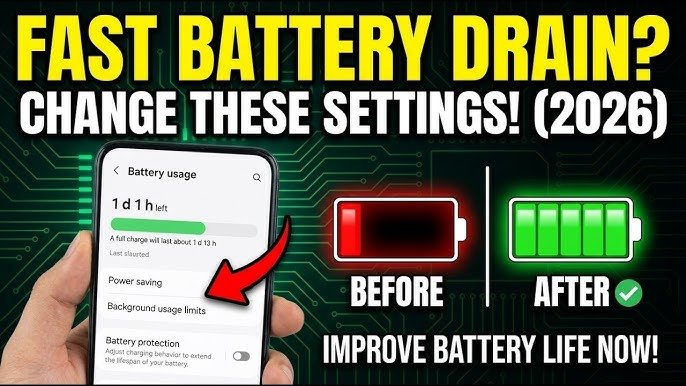
Some apps continue refreshing content, checking notifications, syncing media, or tracking location well after you’ve closed them, which uses both battery and processing resources. Check Settings → Battery → Battery usage to see which apps are the heaviest background users.
Be selective here — restricting background activity for messaging, banking, or navigation apps can cause you to miss important alerts. This step works best when applied to apps that don’t need to notify you instantly, like games or shopping apps.
9. Turn Off Voice Assistant Background Listening
If your phone has “Hey Google” or a similar always-listening voice trigger enabled, that feature runs continuously in the background, using a portion of your device’s resources to listen for a wake word. On older or lower-RAM phones, this can be worth disabling.
To turn it off: open the Google app → Profile photo → Settings → Voice → Voice Match, and disable Hey Google detection. You can still open the assistant manually through a swipe gesture or button. Samsung phones with Bixby Voice have a similar setting if that’s a background feature you don’t rely on.
10. Reduce Home Screen Effects
The home screen is something you interact with constantly, so unnecessary visual overhead there is felt more than almost anywhere else on the phone. Live wallpapers, several active widgets, and feature-heavy third-party launchers all add a small amount of processing load every time you unlock or swipe.
Switching to a static wallpaper, trimming widgets down to the ones you actually check, and using your phone’s stock launcher instead of a heavier custom one are all low-effort changes that tend to make the parts of the phone you interact with most feel more responsive — even if they don’t change any benchmark numbers.
11. Turn Off or Reduce System Animations
Android’s transition animations (the little zoom and slide effects when opening apps or switching screens) don’t make your phone objectively faster, but reducing them makes the phone feel faster because there’s less visual delay between your tap and the result.
This requires enabling Developer Options first: go to Settings → About phone, and tap Build number seven times until you see a message that developer mode is unlocked. Then go to Settings → System → Developer options and look for Window animation scale, Transition animation scale, and Animator duration scale — setting these to 0.5x (or off) reduces animation delay.
A caution worth noting: Developer Options unlocks several settings beyond animation scale, some of which can affect app behavior or stability if changed carelessly. Stick to the animation settings and avoid changing anything else in that menu unless you specifically understand what it does.
12. Switch to Lite Versions of Heavy Apps
Some widely used apps — Facebook, Messenger, and similar large social apps in particular — are known for being resource-heavy, especially on older or lower-RAM devices. Several of these have official “Lite” versions built to use less memory and storage while keeping most of the core functionality.
Search “[app name] lite” in the Play Store to check whether an official lite version exists for an app you use often. This isn’t available for every app, but for the ones it covers, it can noticeably reduce the resource load compared with the full version.
13. Scan for Harmful Apps
A sudden, unexplained slowdown — especially paired with unusual battery drain, overheating, or pop-up ads — can sometimes point to malware or adware, particularly if you’ve installed apps from outside the Google Play Store. Run Google Play Protect (accessible from the Play Store app under your profile) to scan installed apps for known threats.
If you’re seeing unexpected pop-ups specifically, that’s usually a sign of a specific problem app rather than general slowdown, and is worth investigating separately rather than assuming it will resolve with general cleanup.
14. Use Safe Mode to Identify a Problem App
If your phone is slow in a way that feels different from normal gradual buildup — sudden lag, frequent freezing, or unexplained crashes — restarting in Safe Mode can help you isolate the cause. Safe Mode temporarily disables all downloaded apps, running only the phone’s built-in software.
If the phone runs normally in Safe Mode, a downloaded app is likely responsible, and you can narrow it down by re-enabling apps individually or checking recently installed ones first. If the slowdown continues even in Safe Mode, the cause is more likely a system-level or hardware issue rather than something a specific app is doing. Restarting a phone into Safe Mode varies by manufacturer, so check your device maker’s support site for the exact button combination.
15. Consider Whether the Hardware Has Reached Its Limit
Software fixes have real limits. If your phone is several years old, has 3GB of RAM or less, and is no longer receiving Android version updates, it may genuinely be struggling to keep up with how much bigger and more resource-intensive apps have become over time — a phone that felt fast in 2021 can legitimately struggle with 2026-era apps, independent of anything you do in settings.
In that situation, the honest answer is that a factory reset or a new device is the more effective fix, not another round of cache-clearing. A factory reset should always be treated as a last resort and only attempted after backing up anything important, since it erases the device back to its original state.
A Note on “Booster” and “Cleaner” Apps
It’s worth addressing directly: most all-in-one phone booster or RAM cleaner apps provide little measurable benefit, and Android already manages memory automatically in the background. Some of these apps add their own background processes, notifications, or ads, which can offset whatever small gains they claim to offer. The manual steps above — cleanup, updates, background app management, and settings adjustments — are generally safer and more effective than relying on a third-party optimizer app.
Frequently Asked Questions
Will clearing cache delete my photos or saved logins? No. Cache only stores temporary files apps use to load faster. Your photos, documents, and saved account logins are stored separately and aren’t affected by clearing cache.
Do I need to leave Developer Options enabled permanently? No. Once you’ve adjusted the animation scale settings, you can turn Developer Options off or leave it on — the animation changes stay in effect either way.
Is it safe to restrict background apps? Generally yes, especially on phones with 6GB of RAM or less. Just avoid restricting apps where you rely on instant notifications, like messaging or banking apps, since restricting them can delay or block those alerts.
How often should I check for software updates? Checking monthly is a reasonable habit. Major Android version updates in particular can include meaningful performance changes, though availability depends on your specific phone model and manufacturer.
What if none of these steps help? If your phone still feels slow after working through cleanup, updates, and settings changes, the cause may be aging hardware, a failing battery, or a specific problem app you haven’t isolated yet. Testing in Safe Mode or checking battery health through your phone’s built-in diagnostics (where available) can help narrow down the cause, or a visit to a service center may be worth it if you suspect a hardware issue.
Is a factory reset the fastest way to fix a slow phone? It can resolve almost any software-related slowdown, but it’s also the most disruptive option since it erases the device. It’s best treated as a last resort after trying the less invasive fixes above, and only with a full backup in place first.